Movie Strip
A Movie strip displays video from a movie file in the Sequencer. Optionally, one or more Sound Strips can also be created from the movie’s audio streams.
Movie strips reference the original media file rather than embedding it in the blend-file, allowing changes made in external editing or encoding software to be reflected by simply reloading the file.
To add a Movie strip, choose and select one or more movie files in the File Browser.
If a movie contains multiple video or audio streams, Blender imports each stream as a separate strip. The strips are automatically synchronized to match the timing stored in the movie file, including any delays between streams.
Note
Clips can be Huge
A three minute QuickTime .mov file can be 140MB.
Loading it, even over a high-speed LAN can take some time.
Do not assume your computer or Blender has locked up if nothing happens for awhile.
Tip
Movie strips can display thumbnails in the Sequencer overlaid on their strips by enabling the Thumbnails overlay.
Add Movie Strip
Reference
- Menu:
- Move Strips
Use mouse to position strip in timeline immediately after adding. If this option is enabled, Start Frame and Channel properties are not displayed.
- Start Frame
The Start Frame to place the left handle of the strip.
- Channel
The Channel to place the strip.
- Relative Path
Store the location of the image file relative to the blend-file.
- Replace Selection
Replaces the currently selected strips with the new strip.
- Fit Method
Determines how images with an aspect ratio different than the scene’s Resolution are scaled to fit inside the render area.
- Scale to Fit:
Adjusts the strips Scale Transforms so the visual contents of the strip to fit exactly within the project’s Resolution while maintaining the original aspect ratio.
This may mean that the transparent areas may be added along the content’s border to fit the content in the rendered area.
- Scale to Fill:
Adjusts the strips Scale Transforms so the visual contents of the strip to span the project’s Resolution while maintaining the original aspect ratio.
This may mean that portions of the original image no longer fit the content inside the rendered area.
- Stretch to Fill:
Adjusts the strips Scale Transforms so the visual contents of the strip to fill the project’s Resolution. Note, unlike the other two methods described above, Stretch to Fill does not maintaining the original aspect ratio.
This may mean that the original image becomes distorted to fit the content inside the rendered area.
- Set View Transform
Automatically sets an appropriate View Transform based on the Color Space of the imported media. In most cases, the Standard should be used; using the wrong transform could result in inaccurate colors or degraded rendering performance.
- Adjust Playback Rate
Automatically adjusts the video’s speed to playback at the original speed regardless of the scene’s frame rate.
- Sound
Import the movie’s audio streams as Sound Strips.
When the movie contains multiple audio streams, a sound strip is created for each stream.
- Set Scene Frame Rate
Sets the Scene Frame Rate to the frame rate encoded in the movie file.
Example
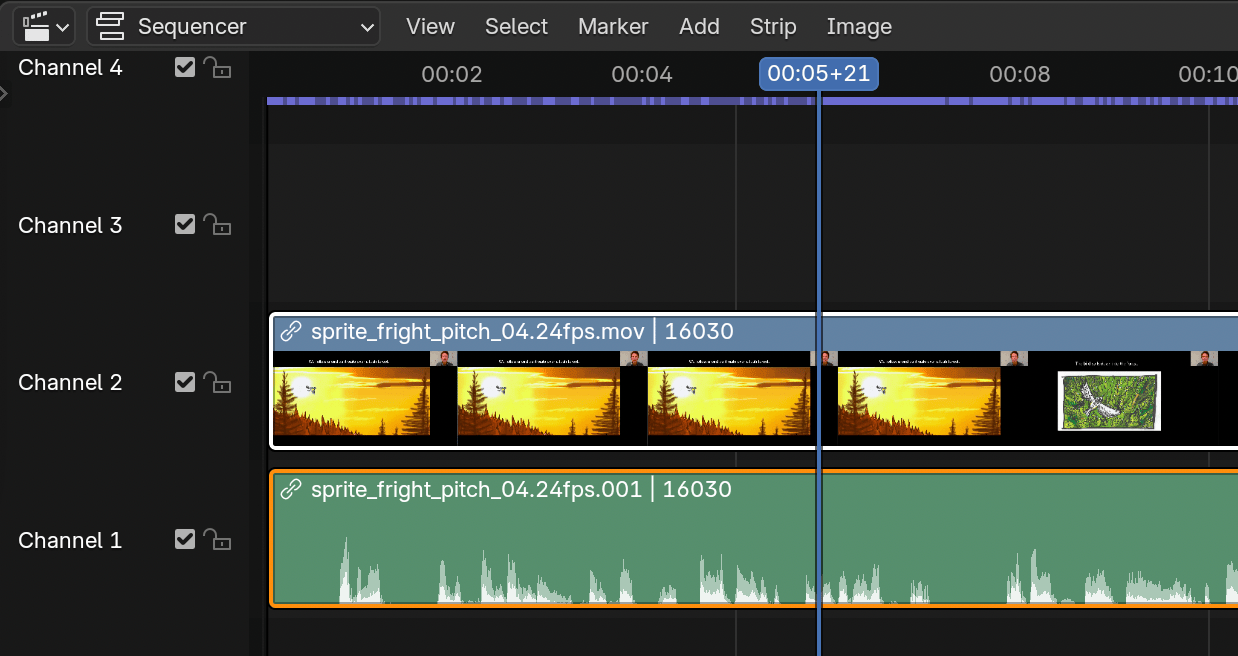
Imported Movie strip with audio track underneath.
In the strip itself, you can see strip name, path to source file, and strip length.